WooCommerce SMS Notifications
Documentation for the Plug and Pay WooCommerce SMS Notifications plugin.
Requirements
Technical Requirements
- PHP: 7.4, 8.1, 8.2, or 8.3
- ionCube Loader: Required. For version requirements and installation details, check the IonCube Loader documentation.
- WooCommerce: 3.0.0 or higher
Service Prerequisites
- SMS Provider Account: You must have an active account with a supported SMS provider (e.g., SMS Office, Sender.ge).
Supported Providers
| Provider | Status | Website |
|---|---|---|
| SMS Office | ✅ | smsoffice.ge |
| Sender.ge | ✅ | sender.ge |
Notification Types
The plugin supports two types of notifications: those sent to the store administrator (Admin) and those sent directly to the customer (User).
| Notification | Recipient | Trigger |
|---|---|---|
| New Order | Admin | Sent when a new order is received. |
| Cancelled Order | Admin | Sent when an order is cancelled. |
| Failed Order | Admin | Sent when a payment fails. |
| Customer Note | User | Sent when an admin adds a note to the order. |
| New Account | User | Sent when a user registers on the site. |
| Reset Password | User | Sent when a user requests a password reset. |
| Order Status | User | Highly flexible notifications based on status changes. |
Configuration
General Settings
Navigate to WooCommerce > Settings > SMS to configure the plugin.
- Enable/Disable: Toggle the overall SMS notification system.
- Provider: Select your preferred SMS provider.
- API key: Enter the API key or token provided by your SMS service.
- Debug Log: Enable this to log SMS events under WooCommerce > Status > Logs.
Extra Features
The plugin includes several utility features to improve the user experience and message deliverability.
Phone Number Masking
Under the Extras section in settings, you can enable JS phone masking. When enabled, the billing phone field on the checkout and registration pages will automatically format inputs for Georgian numbers (for example, +995577123456). For Georgian billing addresses, checkout validation requires the E.164 format +995XXXXXXXXX.
Registration Phone Field
You can enable a Phone field on the standard WooCommerce registration form. This allows you to collect customer phone numbers at the point of account creation, rather than waiting until their first checkout.
Cutt.ly URL Shortening
Since SMS messages have character limits, long URLs (like those for viewing an order) can be problematic. You can provide a Cutt.ly API key in the plugin settings to automatically shorten the {order_url} placeholder into a compact cutt.ly link.
Order Status Notifications
This is the most flexible part of the plugin. Unlike fixed notifications, you can create multiple rules for status transitions.
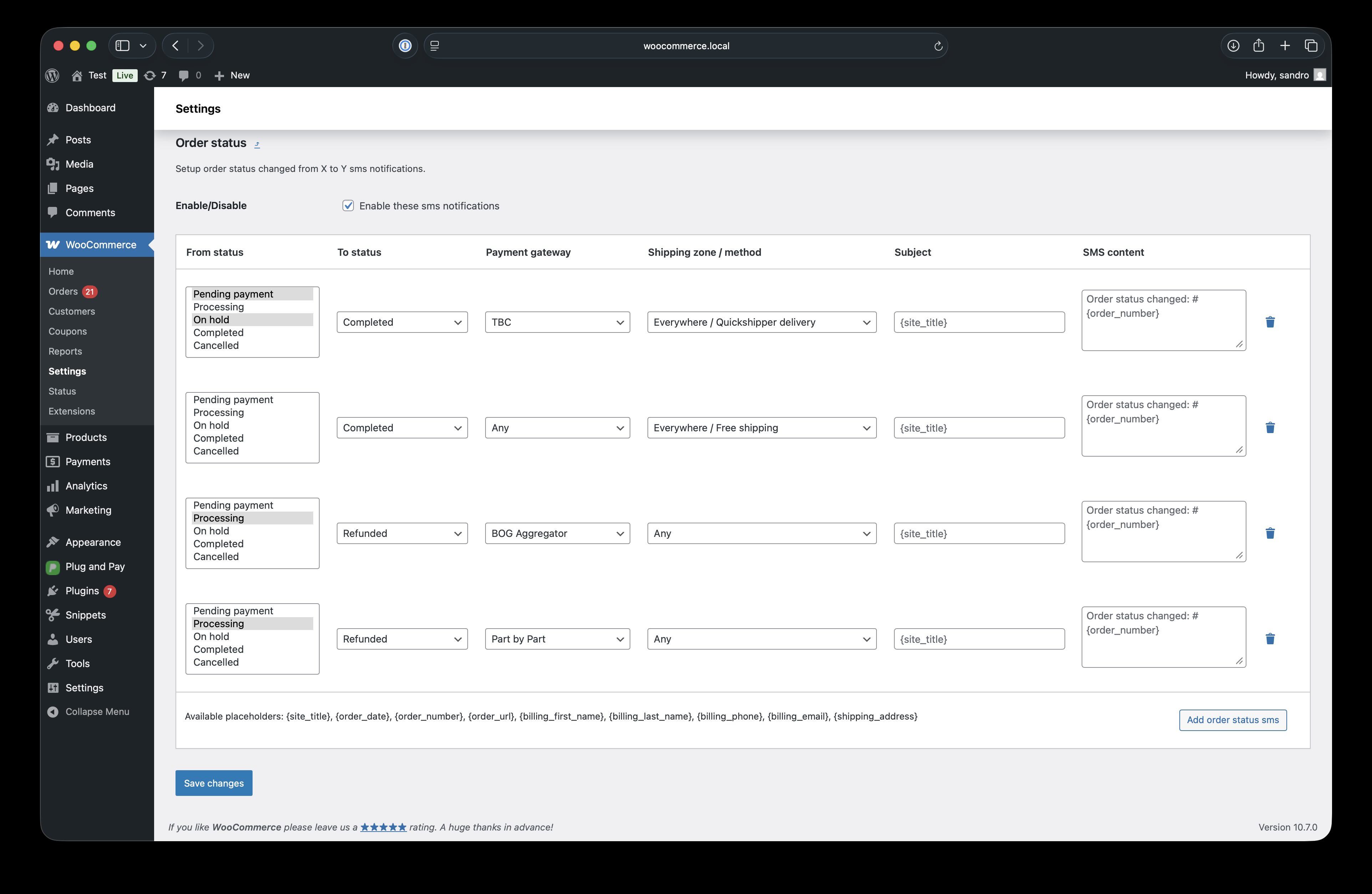
How it works:
You can define rules that trigger an SMS when an order moves from one status to another. For example:
- Rule 1: From
PendingtoProcessing-> "Thank you! We received your order #{order_number}." - Rule 2: From
ProcessingtoCompleted-> "Your order #{order_number} is ready!"
Dynamic Filtering:
For each rule, you can restrict the notification based on:
- Payment Gateway: Only send the SMS if the customer used a specific payment method (e.g., Bank of Georgia).
- Shipping Method: Only send if they chose a specific delivery zone or method (e.g., Wolt).
This allows you to provide highly relevant information (like specific pickup instructions or delivery links) only to the customers who need it.
Using Placeholders
You can use variables in your SMS messages to personalize them.
Universal Placeholders:
{site_title}- Your website name.{order_date}- The date the order was created.{order_number}- The WooCommerce order number.
Customer Specific Placeholders (for order status changes):
{billing_first_name}- Customer's first name.{billing_last_name}- Customer's last name.{billing_phone}- Customer's phone number.{billing_email}- Customer's email address.{order_url}- A shortened link to view the order.{shipping_address}- The formatted shipping address.
Other notification types have their own placeholders in the notification settings. For example, admin order notifications include {order_billing_full_name}, and customer note notifications include {customer_note}.
Debugging
If SMS notifications are not being sent:
- Check your SMS Balance on the provider's dashboard.
- Verify that the API Key is correct in the plugin settings.
- Enable Logging in WooCommerce > Status > Logs to see errors from the SMS provider.