Licensing
All Plug and Pay plugins require an API key for activation and updates. This guide covers how to manage your licenses.
Where to Find Your API Key
You can find your API key in two places: your account dashboard on our website and the order confirmation email you received after purchase.
My Account Dashboard
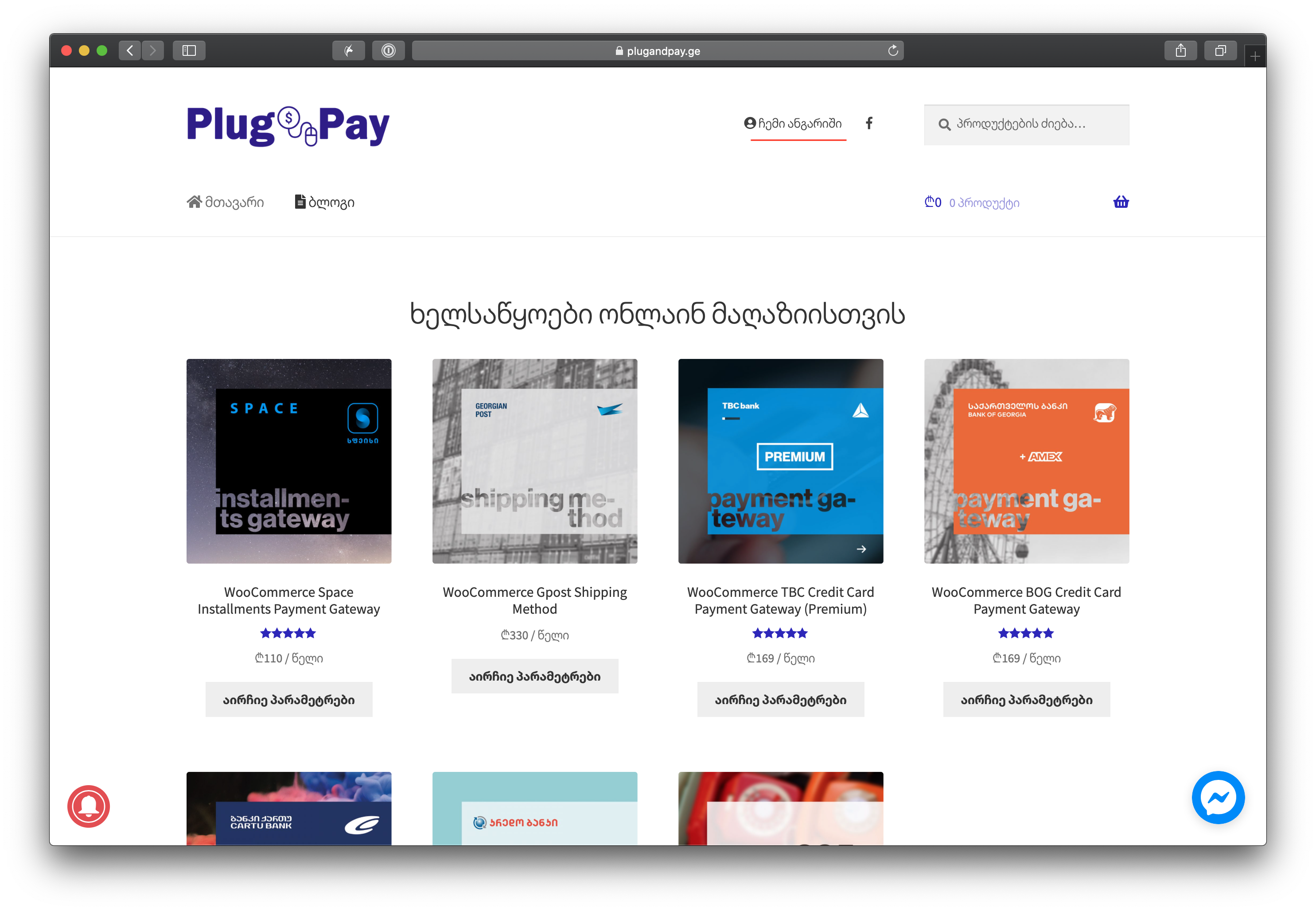
Visit plugandpay.ge and click on "My Account".
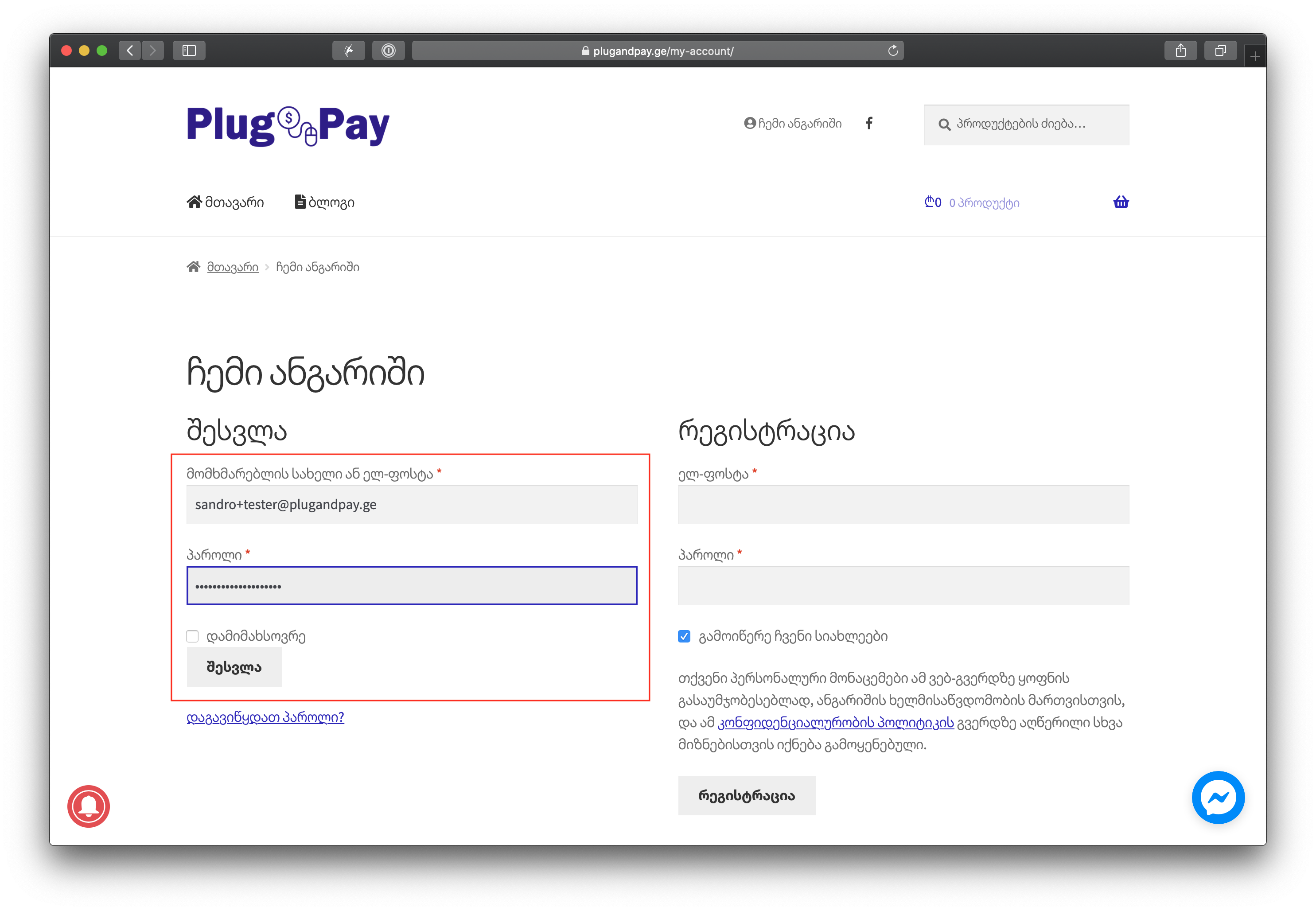
Log in with the account used to purchase the plugin.
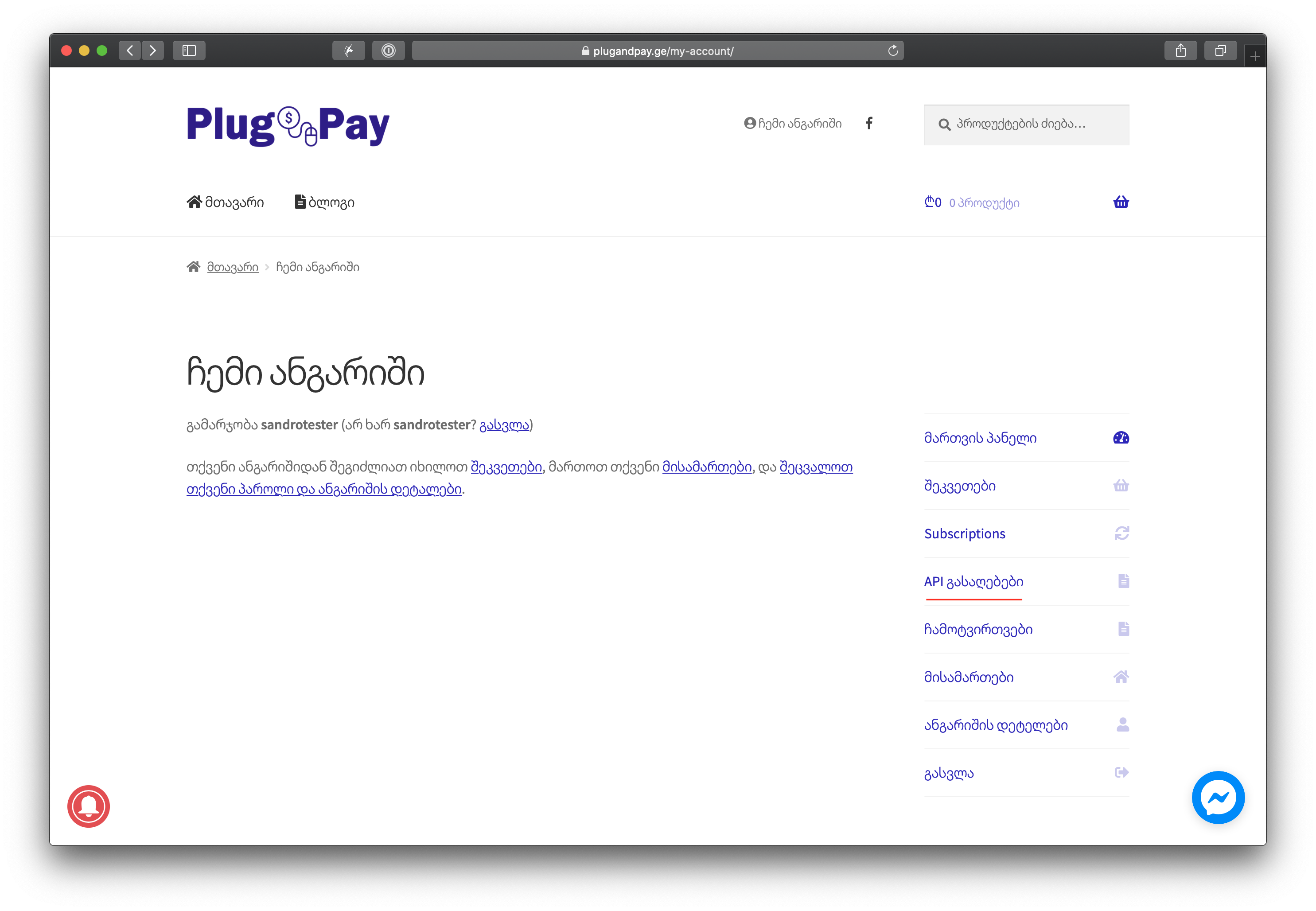
In the dashboard menu, click on "API Keys".
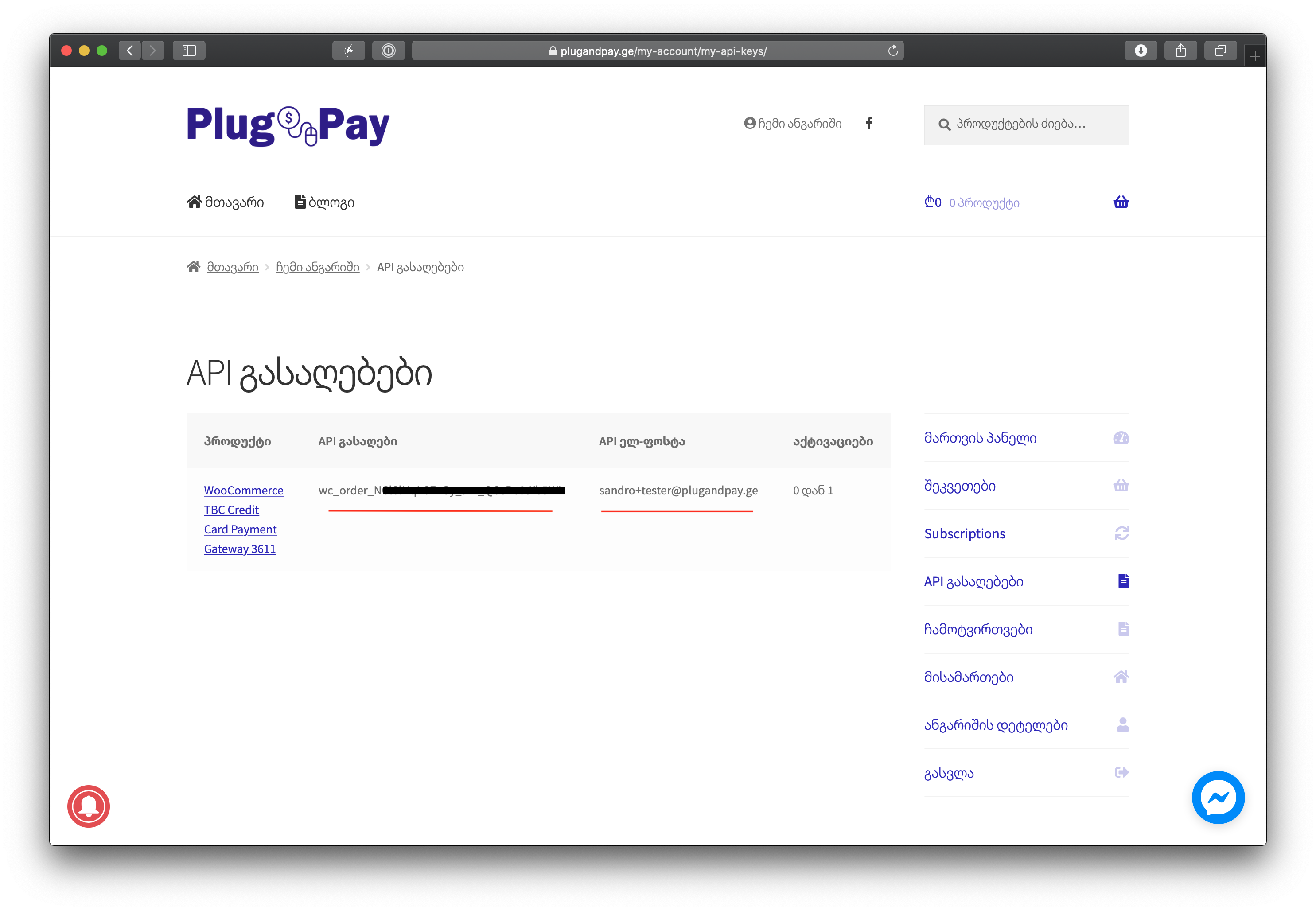
Here you will see a list of your API keys and the associated email addresses.
Order Confirmation Email
Your API key is also included in the email sent to you immediately after your purchase. 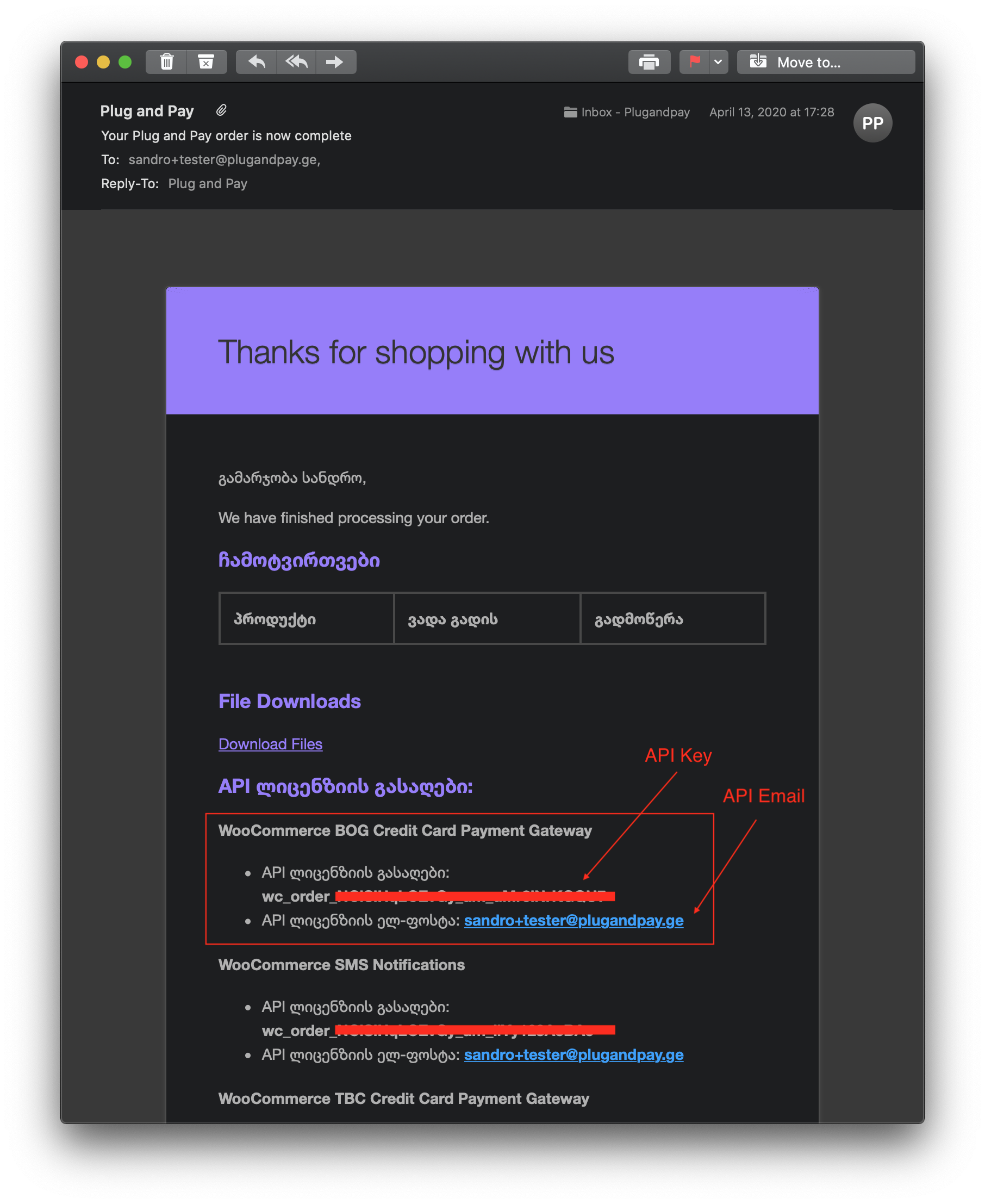
Using Your API Key
Activation
Once you have installed the plugin, enter your API key and associated email in the plugin settings to activate it. 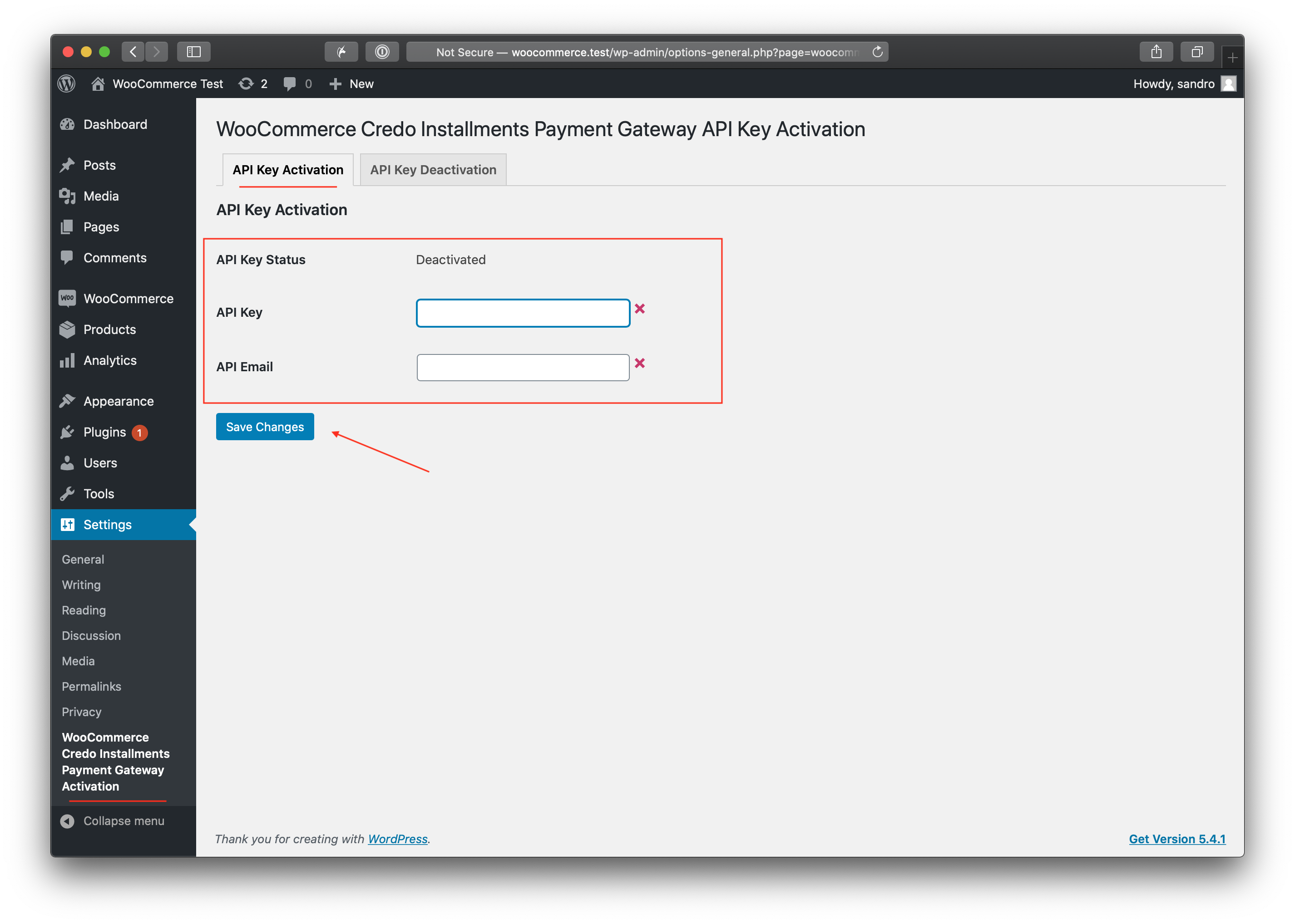
Deactivation
If you need to move the plugin to another site, you should first deactivate it on the current site. 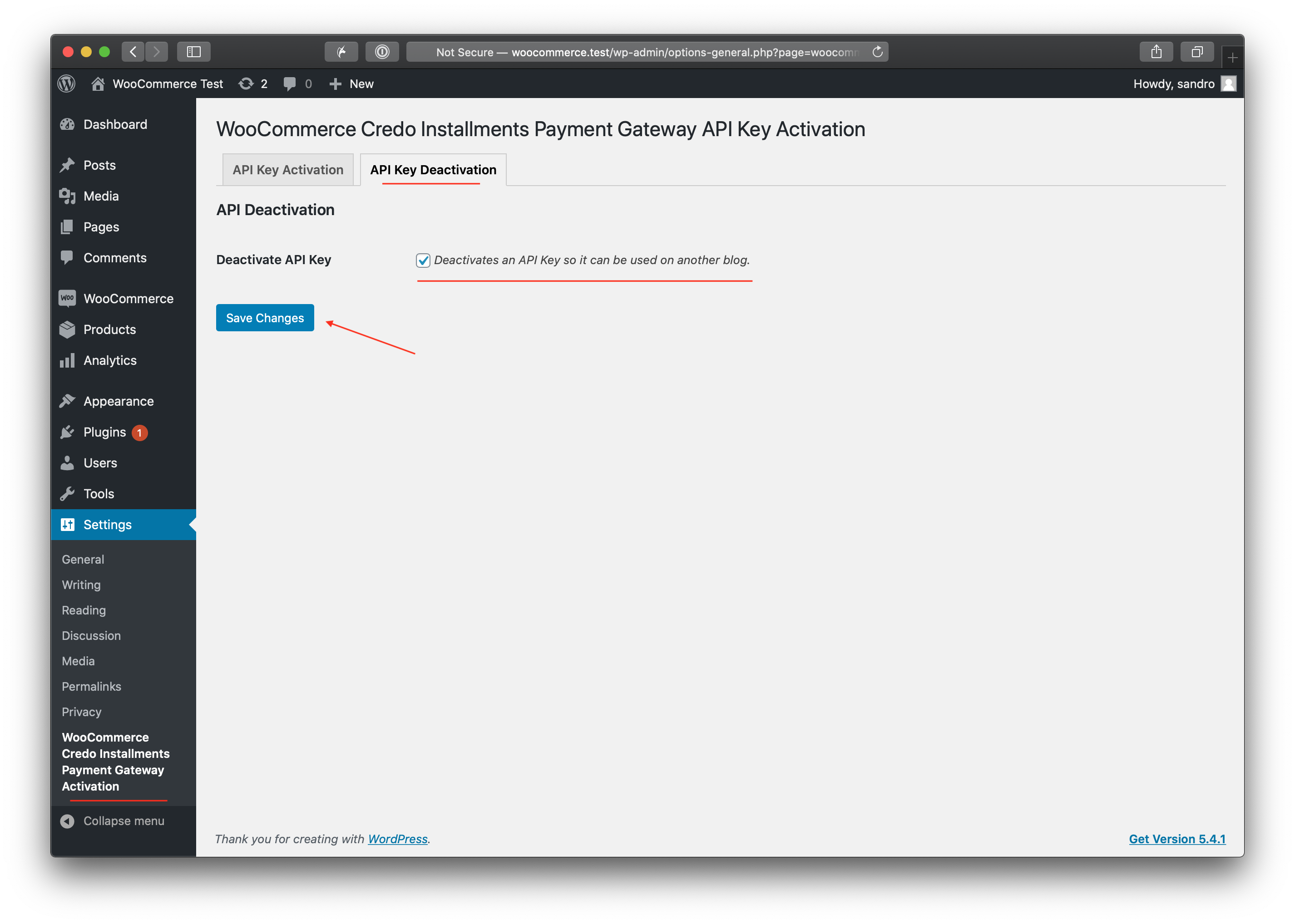
Resetting Activations
You might need to reset or delete an activation if:
- You are changing your website domain.
- You are moving to a new hosting provider.
- You are reinstalling WordPress and WooCommerce.
- You are moving a license from a staging/test site to production.
If you see the error "Exceeded maximum number of activations", it means the license is still tied to a previous installation.
How to Delete an Activation
- Log in to your account at plugandpay.ge.
- Go to the "API Keys" section in your dashboard.
- Click the "Delete" button next to the active domain you want to remove.
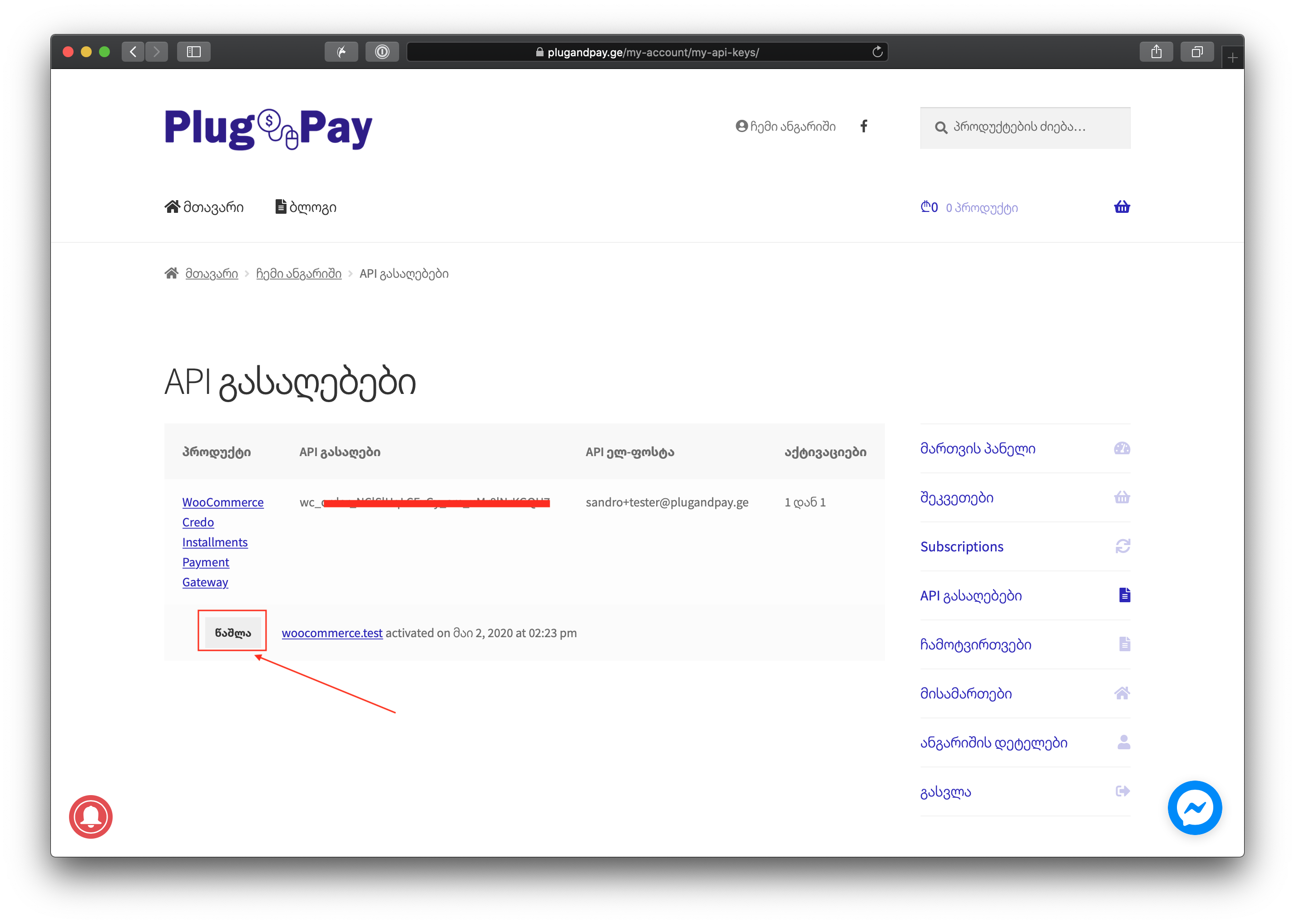
After deleting the old activation, you will be able to use the same API key to activate the plugin on your new site.